An Introduction to Mapping with D3
Brian Davidson - Maptime DC
Original presentation by Andy Woodruff for Maptime Boston
Follow along!
briandaviddavidson.com/d3-maptime
Or get the code for examples:
Before we begin...
D3 is HARD for beginners. Here at Maptime we'll try to make enough sense of it to get you on your way to making amazing maps, but we strongly recommend spending time with more thorough guides and examples.
- D3 documentation. Start here!
- Be sure to note the tutorials page there.
- Scott Murray's D3 tutorials are especially recommended.
- Browse Mike Bostock's examples. He is someone who understands the power of examples.
- For examples of specific pieces of D3, try bl.ocksplorer.org, by Irene Ros.
If you see the down arrow in the bottom right hand corner of a slide, press down to see links to helpful resources on the subject at hand.

What is D3?
D3 is Data-Driven Documents:
“D3.js is a JavaScript library for manipulating documents based on data. D3 helps you bring data to life using HTML, SVG and CSS. D3’s emphasis on web standards gives you the full capabilities of modern browsers without tying yourself to a proprietary framework, combining powerful visualization components and a data-driven approach to DOM manipulation.”
What the heck does that mean?

It means taking data...
| DC Neighborhood | Population |
|---|---|
| Capitol Hill | 400 |
| Adams Morgan | 900 |
| Brookland | 300 |
| Mt. Pleasant | 600 |
...binding it to HTML or SVG elements...
...and manipulating those elements based on the data.
Simple, right?
There's more to it, of course, but building on that core concept leads to some pretty amazing stuff.
D3 was created by Mike Bostock back in the simplier time of 2011. It's an open-source library with many additional contributors. (Be sure to check out the work by one of the main contributers, Jason Davies.)
D3 is not a graphical representation
D3 is not a magic tool that draws and styles charts, maps, etc. Rather, it provides a means for YOU to create and style web-standard documents based on your data.*
*That said, there are a handful of cases in which D3 does kind of magically draw something for you based on some parameters. A basic example is an axis.
For now, we'll stick to maps and charts.
Now that that's done...
Let's make something!
Let's start with something small...
like the bar chart from a few slides back
Lay down some boilerplate HTML and load the D3 library.
<html>
<head>
A D3 chart
</head>
<body>
</body>
</html>
Let's begin with some of that data I've been yammering on about. We'll use those made up population numbers from the earlier table. Inside the <script> tag, create a simple array of the numbers.
var dcPop = [ 400, 900, 300, 600 ];
Now let's make some SVG elements to which the data will be attached.
<html>
<head>
A simple D3 bar chart
</head>
<body>
</body>
</html>
Back in the <script> tag.
var dcPop = [ 400, 900, 300, 600 ];

d3.selectAll( "rect" )
  .data( dcPop )
  .attr( "height", function(d){
    return d/10 * 3;
  })
  .attr( "y", function(d){
    return 150 - d/10 * 3;
  });
What just happened?
d3.selectAll( "rect" )D3 has select() and selectAll() methods to find single or multiple DOM elements, respectively. This is very similar to jQuery's .select() statement .
d3.selectAll( "rect" ); // select all SVG rect elements
d3.select( "#washingtonDC" ); // select an element where id='washingtonDC'
d3.selectAll( ".bar" ); // select all elements with the class 'bar'
Since selectAll("rect") finds multiple elements, everything in the chain following this will be happening to each of those elements.
"DOM elements" basically means HTML or SVG entities, like a <div> or <p> or <circle> element. Elements have properties and styles that we'll be controlling via D3 code.
d3.select( "rect" )
d3.selectAll( "rect" )
d3.selectAll( "rect" )
  .data( dcPop )
The data() method is the very soul of D3. With it, an array of data is bound to page elements.
In your web inspector, see that the data has been directly attached to the <rect> elements as a __data__ property.
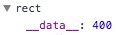
In the simplest case, array data is joined to elements in order. So our first <rect> gets a value of 400, the second 900, and so on.
There are powerful, more sophisticated ways of joining data to elements and specifying which elements get which data values. For more info, see Mike Bostock's Object Constancy example and explanation of how key functions can be used in data joins.
d3.selectAll( "rect" )
  .data( dcPop )
  .attr( ... )
Again like jQuery, D3 has methods to get and set element attributes and styles. They can be used to set hard-coded values...
var el = d3.select( "rect" );

el.attr( "height", 10 ); // set the rectangle's height attribute to 10
el.style( "opacity", 0.5 ); // set a CSS style
el.attr( "height" ); // returns 10
el.style( "opacity" ); // returns .5
...or they can set values based on the element's data by passing a function, which is what we did.
    .attr( "height", function(d){ // d = the element's data
      return d/10 * 3; // return value will assigned to the height attribute
    })
For each element, the function will be invoked with d being its data value (in our case, a number like 400 from our dcPop array). Whatever the function returns is what the "height" attribute will be set to.
    .attr( attribute_name, function(d,i){
      return some_value;
    })
This is a more generalized form of setting attributes based on data. d represents the data bound to the element. i represents the element's zero-based index in the selection. (We'll see that in action later on.)
So in an expanded example of our first bar...
.attr( "height", function(d,i){
  // d = 400
  // i = 0
  return d/10 * 3; // 400/10 * 3 = 120
})
and the second bar...
.attr( "height", function(d,i){
  // d = 900
  // i = 1
  return d/10 * 3; // 900/10 * 3 = 270
})
d3.selectAll( "rect" )
  .data( dcPop )
  .attr( "height", function(d){
    return d/10 * 3;
  })
  .attr( "y", function(d){
    return 400 - d/10 * 3;
  });
Finally, we do a similar thing for the rectangle's y attribute so that it's aligned to the bottom of our 400-pixel high SVG. (Otherwise, the bars would hang down from the top.)
Notice that D3 uses handy method chaining. Methods such as data() and attr() return the selection, allowing us to do multiple things in a row without having to reselect the elements.
You made a chart with D3! Hooray!
#DcPopChart
Y'all ready to get confused now?


Creating elements
It's more often the case that you don't have your data-driven elements (rect in our case) pre-baked into the page, but rather create them on the fly. Let's give that a try. Start with another empty HTML page.
<html>
<head>
A D3 chart
</head>
<body>
</body>
</html>
Deep breath. Here's code for the same chart. Don't worry, we'll walk through it all!
var dcPop = [ 400, 900, 300, 600 ]; // looks familiar!

var svg = d3.select( "body" )
            .append( "svg" )
              .attr( "width", 500 )
              .attr( "height", 150 );

svg.selectAll( "rect" )
  .data( dcPop )
  .enter()
  .append( "rect" )
    .attr( "x", function(d,i){
      return i*50;
    })
    .attr( "width", 15 )
    .attr( "fill", "#d1c9b8" )
    .attr( "height", function(d){
      return d/10 * 1.5;
    })
    .attr( "y", function(d){
      return 150 - d/10 * 1.5;
    });
var svg = d3.select( "body" )
            .append( "svg" )
              .attr( "width", 500 )
              .attr( "height", 150 );
First we have to create an SVG element into which our bar rectangles will go.
This will look somewhat familiar if you've used jQuery. Select the body and append an svg to it. But there are two key differences from jQuery:
1. D3's append() takes only the name of the element, not actual markup or content.
d3.select( "body" ).append( "svg" )
// versus
$( "body" ).append( "<svg>" )
2. D3's append() returns the appended element, not the parent. Thus the attributes we set in the next lines will apply to the SVG, not the body (as they would with jQuery).
var svg = d3.select( "body" ) // returns body selection
            .append( "svg" ) // returns svg selection
              .attr( "width", 100 ) // returns svg selection
              .attr( "height", 150 ); // returns svg selection
And because the last method in the chain returns the SVG selection, that's what our svg variable is defined as.
svg.selectAll( "rect" )
  .data( dcPop )
Cool, we're selecting all the <rect> elements in the SVG and binding data to them...
Wait, what!?
Those rectangles don't exist!
This part is hard to grasp at first, but don't worry if you don't understand. For now, just know that this is how you write the code.
If there are no <rect> elements, we get an empty selection, kind of a placeholder for what's to come. Once we bind data to this selection and append some elements, the selection will contain those elements.
For what exactly is going on under the hood with empty selections and the following data binding, take a look at this short step-by-step overview by Carl Sack.
This is the basic syntax for creating new elements to match a data array.
svg.selectAll( "rect" )
  .data( dcPop )
  .enter()
  .append( "rect" )
enter() refers to new incoming data for which there is not yet an existing <rect>. (We'll come back to that later.) For each incoming data value, we're appending a <rect> element.
svg.selectAll( "rect" )
  .data( dcPop )
  .enter()
  .append( "rect" )
    .attr( "x", function(d,i){
      return i*50;
    })
We space the bars our horizontally using that second i argument, the index of each bar in the selection. For our four rectangles, i here will be 0, 1, 2, and 3, giving us x positions of 0, 50, 100, and 150.
After this, we set fixed width and color values, and set the heights as we did in the previous example, and we're done!
enter, exit, and update
Now that we have rectangles on the page, we could go back and update them the same way we did in the first example. Maybe we want to change the numbers:
var newData = [ 800, 200, 400, 500 ];

svg.selectAll( "rect" )
  .data( newData ) //newData is passed instead of dcPop
  .attr( "height", function(d){
    return d/10 * 3;
  })
  .attr( "y", function(d){
    return 400 - d/10 * 3;
  });
Easy. Four new numbers for four bars.
But what if we send it five numbers? Or only three?
This is where enter and exit selections come in. They deal with new elements and unused elements, respectively, based on incoming data. The update selection is what we just dealt with: basically, existing elements.
enter
We have four existing bars. Let's say we send our chart a new data array of five numbers.
var newData = [ 800, 200, 400, 500, 100 ];
var selection = svg.selectAll( "rect" )
                  .data( newData )
The enter selection...
selection.enter()
...contains one placeholder for that new fifth number, to which we can append a <rect>. We've already seen the enter selection in action, of course, back at the beginning.
So we bind new data and append another rectangle:
var newData = [ 800, 200, 400, 500, 100 ];
var selection = svg.selectAll( "rect" )
                  .data( newData );
// this part will only happen for the new fifth bar
var rect = selection.enter()
  .append( "rect")
  .attr( "x", function(d,i){
    return i*50;
  })
  .attr( "width", 30 )
  .attr( "fill", "#d1c9b8" );
Then we can update all the bar heights as usual:
// this part will happen to all five bars
rect
  .attr( "height", function(d){
    return d/10 * 3;
  })
  .attr( "y", function(d){
    return 400 - d/10 * 3;
  });
exit
Now we have five bars. What if we plug only three numbers into the chart? Well...
var evenNewerData = [ 600, 300, 100 ];
var selection = svg.selectAll( "rect" )
                   .data( evenNewerData );
selection
  .attr( "height", function(d){
    return d/10 * 3;
  })
  .attr( "y", function(d){
    return 400 - d/10 * 3;
  });
Okay, so we updated bar heights for those three numbers. But we still have two extra bars left over!
The exit selection...
selection.exit()
...contains those elements that no longer have data after the join. In this case, it's those last two bars, because we didn't provide any numbers for them. And since we don't need them anymore...
selection.exit()
  .remove();
Poof! They're gone!
If we put everything together, our chart is pretty flexible and can be updated as needed. Here's how that might look.
var dcPop = [ 400, 900, 300, 600 ];

var svg = d3.select( "body" )
            .append( "svg" )
              .attr( "width", 600 )
              .attr( "height", 400 );

function drawChart( dataArray ){
    // create a selection and bind data
    var selection = svg.selectAll( "rect" )
                       .data( dataArray );

    // create new elements wherever needed
    selection.enter()
      .append( "rect" )
      .attr( "x", function(d,i){
        return i*50;
      })
      .attr( "width", 30 )
      .attr( "fill", "#d1c9b8" );

    // set bar heights based on data
    selection
      .attr( "height", function(d){
        return d/10 * 3;
      })
      .attr( "y", function(d){
        return 400 - d/10 * 3;
      });

    // remove any unused bars
    selection.exit()
      .remove();
}

drawChart( dcPop );

// Now try opening up the console and calling drawChart() with different data arrays.
// The chart will update with the correct number and size of bars.
// drawChart( [200, 300, 400, 500, 600, 700] )
// drawChart( [800, 700, 600] )
// and so on
Phew!

If you're confused, don't worry! Take your time with some of the good tutorials out there. Once you get the hang of selections and data joins, you are well on your way to D3 mastery.
Check out things like Mike Bostock's Let's Make a Bar Chart tutorial and his explanation of selections to help you get there.
So we made a chart. Fine.
But this isn't Charttime
It's

It's
D3 is good at maps
Don't sweat; it's easier than you might think! Drawing a basic map doesn't take any more code than drawing those four bars.
All the code that turned GeoJSON data into that map:
<html>
<head>
  <title>A D3 map of Washington DC</title>
  <script src="https://d3js.org/d3.v4.min.js" charset="utf-8"></script>
  <script src="neighborhoods.js"></script>
</head>
<body>
  <script>
var width = 700,
    height = 580;

var svg = d3.select( "body" )
  .append( "svg" )
  .attr( "width", width )
  .attr( "height", height );

var g = svg.append( "g" );

var albersProjection = d3.geoAlbers()
  .scale( 150000 )
  .rotate( [77.0369,0] )
  .center( [0, 38.9072] )
  .translate( [width/2,height/2] );

var geoPath = d3.geoPath()
    .projection( albersProjection );

g.selectAll( "path" )
  .data( neighborhoodsJson.features )
  .enter()
  .append( "path" )
  .attr( "fill", "#ccc" )
  .attr( "stroke", "#000" )
  .attr( "d", geoPath );

  </script>
</body>
</html>
D3 and GeoJSON
D3 has some internal magic that can turn GeoJSON data into screen coordinates. This is not unlike other libraries such as Leaflet, but the result is much more open-ended, not constrained to shapes on a tiled Mercator map.
Time to get mappin'
Let's walk through that DC map. First, include the neighborhoods GeoJSON data. We've assigned it to a variable called neighborhoodsJson in neighborhoods.js which is loaded in the document <head>.
<head>
  <title>A D3 map of Washington DC</title>
  <script src="https://d3js.org/d3.v4.min.js" charset="utf-8"></script>
  <script src="neighborhoods.js"></script>
</head>
The first bit of JS code should look similar to what we've already encountered:
var width = 700,
    height = 580;

var svg = d3.select( "body" )
  .append( "svg" )
  .attr( "width", width )
  .attr( "height", height );

var neighborhoods = svg.append( "g" );
var albersProjection = d3.geoAlbers()
  .scale( 150000 )
  .rotate( [77.0369,0] )
  .center( [0, 38.9072] )
  .translate( [width/2,height/2] );
Whoa, does that say projection? If you hear a cartographer get excited about D3, this is why.
D3 supports the map projections you've always dreamed of.
var albersProjection = d3.geoAlbers()
Back to the code. This is what a basic projection looks like. It creates a function that allows you to plug longitude and latitude values and get projected coordinates back.
For example, having created the albersProjection variable above, the following call would return some coordinates:
albersProjection( [-77.0369,38.9072] ); // longitude and latitude of the DC area
D3 has a handful of projections built in, but there are tons more supported in an external plugin.*
*we'll circle back around to this
var albersProjection = d3.geoAlbers()
  .scale( 150000 )
  .rotate( [77.0369,0] )
  .center( [0, 38.9072] )
  .translate( [width/2,height/2] );
Back to this.
scale: How far in or out you are. (Definitely takes some finagaling)rotateandcenter: depending on the projection, you may need to use both of these to center the projection on your area of interest.translate: a pixel offset, commonly specified to ensure that the center of the projection is in the center of the viewing area
Geo paths
Having said a minute ago that you can plug longitude/latitude pairs into a projection, it's rare that you will actually explicitly do this. Instead, it tends to happen behind the scenes with path generators.
var geoPath = d3.geoPath()
    .projection( albersProjection );
Once again we are creating a function here. A path is a function that takes a GeoJSON feature and returns SVG path data, based on the specified projection. Put differently in a kind of pseudo-code, we're doing this:
var geoPath = function( feature ){
  // grab lat/lon coordinates from geojson feature
  // do some crazy magic to turn them into screen coordinates
  // return SVG path string
}
It helps to remember a path as a function in a moment.
neighborhoods.selectAll( "path" )
  .data( neighborhoodsJson.features )
  .enter()
  .append( "path" )
  .attr( "fill", "#ccc" )
  .attr( "stroke", "#000" )
  .attr( "d", geoPath );
Most of this should look familiar by now. Select a bunch of non-existent things, bind data, append new elements, and apply some attributes. Our elements here are SVG paths, which are basically free-form shapes.
This part can be a little confusing, though:
.attr( "d", geoPath )
First, in SVGs, d is an attribute that defines the coordinates of a path. It's just a bunch of letters and numbers.
Second, this is where it helps to remember that a D3 path is actually a function. The code above is equivalent to a more familiar syntax:
.attr( "d", function(d){
  // do magic and return SVG path string
})
Lather, rinse, repeat
Again, if you don't really get it, don't worry! You can copy this basic template and re-use it for whatever you're mapping. The only thing you need to do is supply your own GeoJSON and tweak the projection to fit your geography. The more you play around, the more you'll understand.
Epilogue
All we did is make a couple of static graphics, but if you're like me, you're exhausted.

Still, there are a few additional things worth mentioning.
CSS styles
All of the examples herein specified things like color as an attribute on each feature for clarity. But a cleaner way to do it is with CSS. So on the bar chart, for example, instead of
.attr( "fill", "#d1c9b8" )
we could omit that line and include a stylesheet with
path{ fill: #d1c9b8; }
Interactivity
We'll save this for another day, but adding interaction is an obvious next step toward awesome maps.
pois.selectAll( "path" )
  .data( poisJson.features )
  .enter()
  .append( "path" )
  .attr( "d", geoPath )
  .on( "click", function(){
    d3.select(this).remove();
  });
D3 uses pretty basic event listeners through the on() method.
Transitions
D3 makes transitions (i.e., animation) easy, which is useful for anything from design flair to time-series graphics.
d3.select(this)
  .attr("opacity",1)
  .transition()
  .duration( 1000 )
  .attr( "x", width * Math.round( Math.random() ) )
  .attr( "y", height * Math.round( Math.random() ) )
  .attr( "opacity", 0 )
  .each("end",function(){
    d3.select(this).remove();
  })
With a transition() in there, anything after that will be animated rather than taking effect immediately. Read more about it.
Loading external data
Although our examples used pre-loaded data, D3 has methods for loading data asynchronously. Check out d3.json() and d3.csv() in particular.
Modules
D3 is separated out into modules which allows for flexibility. It doesn't require you to import the entire library. You can just grab d3-geo or d3-selection. Check out the full list on the d3 repo and read more about ES6 modules.
Also
- Maptime Seattle's D3 tutorial
- D3 workshop from Maptime SF by Ian Johnson
- D3 animated map tutorial from Maptime Amsterdam